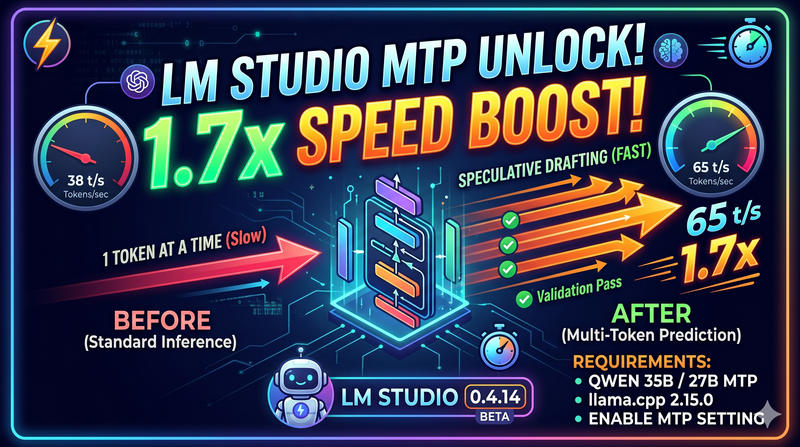
The common wisdom says that if you want to run a 35-billion-parameter model, you need a desktop with a massive, expensive GPU. That wisdom is officially outdated.
Using a modern mid-range laptop—an RTX 4060 (8GB) paired with a 14-core i7-13650HX—you can run Qwen 3.6 35B at blazing speeds with a massive 256,000-token context window. We aren't just making this "possible"; we’re making it your new daily driver.
The Hardware Advantage
While the "floor" for these models is 6GB of VRAM, the extra 2GB on the RTX 4060 is a game-changer. It allows us to keep the "brain" of the model on the GPU while using the high-core-count i7 and 32GB of DDR5 RAM to handle the heavy lifting of the "experts."
The Results: Default vs. Optimized
Performance Benchmark: Qwen 3.6 35B
Hardware: RTX 4060 (8GB) | i7-13650HX | 32GB RAM
| Metric | Default Settings | Tuned & Optimized |
|---|---|---|
| Generation Speed | 18-19 tokens/s | 35-40 t/s |
| Context Window | 8,192 tokens | 262,144 (Full) |
| Memory Handling | SSD Paging (Lag) | Locked in RAM |
| Processing Feel | Standard Reading | Instant Scanning |
The 5 Steps to Blazing Fast Local AI
1. The Expert Offload (MoE Magic)
Qwen 3.6 35B is a Mixture of Experts (MoE). It has 35 billion parameters, but only uses ~3 billion per token.
- The Strategy: Keep the core architecture on the 8GB GPU and push the "Experts" to your 32GB of system RAM.
2. Kill the Stutter: No mmap
By default, software tries to save RAM by reading the model from your SSD on the fly, causing micro-stutters.
- The Fix: Disable mmap. With 32GB of RAM, you have the space to force the model into memory upfront, making every token appear instantly.
3. Recovering "Lost" VRAM
With 8GB of VRAM, you have "free real estate" older cards don't.
- The Tweak: Force more expert layers onto the GPU. This reduces the data traveling across your laptop's internal bus, pushing your tokens-per-second from the high teens into the 40s.
4. The 256K Context Hack (Turbo Quant)
Standard context memory (KV Cache) is a VRAM hog.
- The Solution: Use KV Cache Quantization. By setting the cache to Q4 or Q8, you can process entire books or massive codebases without an "Out of Memory" (OOM) error.
5. Stability: Memory Locking
Laptops have aggressive power management that can make AI feel sluggish if you step away for a minute.
- The Fix: Enable Memory Locking (mlock). This tells your OS: "This RAM is mine. Do not touch it." The model stays "warm" and ready for instant response 24/7.
Implementation Guide
Option A: The "One-Command" Setup (llama.cpp)
Paste this into your terminal (adjusting the path to your model file) to unlock the full performance of your hardware:
C:\llama\llama-server.exe ^
  --model "C:\path\to\Qwen_Qwen3.6-35B-A3B-Q4_K_M.gguf" ^
  --n-gpu-layers 999 ^
  --n-cpu-moe 41 ^
  --no-mmap ^
  --ctx-size 262144 ^
  --mlock ^
  --host 0.0.0.0 --port 8080
Option B: The Visual Setup (LM Studio)
If you prefer a UI, change these settings on LM Studio
- Context Length:
262144 - GPU Offload:
40 - Keep Model in Memory:
ON - Try mmap():
OFF - Flash Attention:
ON - K/V Cache Quant:
Q8_0(Drop toQ4_0if you need more VRAM headroom)
The Verdict: Laptop vs. Desktop
Using these five tweaks, a mid-range RTX 4060 laptop can outperform many older desktop "workstations." You don't need a server room; you just need to stop using the default settings and take control of your hardware.
Are you using your 4060 for coding or creative writing? Drop a comment below and I’ll share the best prompt templates for this specific 35B setup!